 GlideMix
How to fix a wrong beat grid
When the grid is off, sync, loops and quantized cues are off too. Here is how to fix it in the four apps, and how to tell which kind of wrong it is.
First: is the grid really wrong?
A grid has two parts. The tempo sets how far apart the lines are; the start sets where bar 1 begins. Play the song with the metronome on and listen at three places: the first kick, after the breakdown, and near the end.
- Off by the same amount everywhere: the tempo is right, only the start is wrong. Move the whole grid.
- Fine at the start, drifting later: the tempo is slightly wrong. Change the BPM in tiny steps.
- Fine, then suddenly off: the song changes tempo or was edited. It needs a new marker (or a split) from that point.
rekordbox
In the 1 PLAYER layout of EXPORT mode, with the song paused.
- Choose 1 PLAYER at the top left, load the song and pause it.
- Click GRID in the panel under the waveform. The lines turn blue and can be edited.
- Turn on the metronome and play to hear where the grid sits.
- Wrong start: put the playhead on a clear first beat of a bar and click the button that makes it beat 1 of the bar (the first button of the GRID panel).
- Whole grid early or late: the arrow buttons move it by 1 ms at a time.
- Drifting: type the right BPM into the BPM box, or use TAP, ×2 and ÷2 for half or double tempo.
- When it is right, click the lock (Analysis Lock) so a new analysis cannot overwrite it.
The grid cannot be edited while the computer is connected to PRO DJ LINK equipment.
Serato
In Serato DJ Pro, in the Beatgrid Editor.
- Load the song and click Edit Grid next to the time display, or press Alt + Space.
- Wrong first beat: click CLEAR (or Shift + Delete for the whole grid), put the playhead on the downbeat and click SET or press X. The marker snaps to the nearest transient.
- Drifting: Adjust stretches or squeezes the grid (arrow keys, Shift + arrow for bigger steps).
- Whole grid early or late: Slip moves it without changing the BPM (Ctrl + arrow keys).
- A tempo change: set a Beat Warp Marker where it happens (X, or Alt + double-click).
- Click SAVE or press Enter. Esc leaves without saving.
Traktor
In Traktor Pro, on the GRID page of the deck's Advanced Panel.
- If you don't see the Advanced Panel, set the deck size to Advanced in Preferences → Decks Layout.
- Open the GRID page of the deck.
- Put the playhead on the first downbeat and press Set Grid Marker. Each marker starts a new tempo zone, so set one at every tempo change.
- Zoom in and line each marker up with the beat using Move Grid Marker back and forward, then fine-tune the BPM.
- Reset runs the automatic analysis again and removes your markers.
- Lock the song with the padlock (Analysis Lock) when you are done.
GlideMix
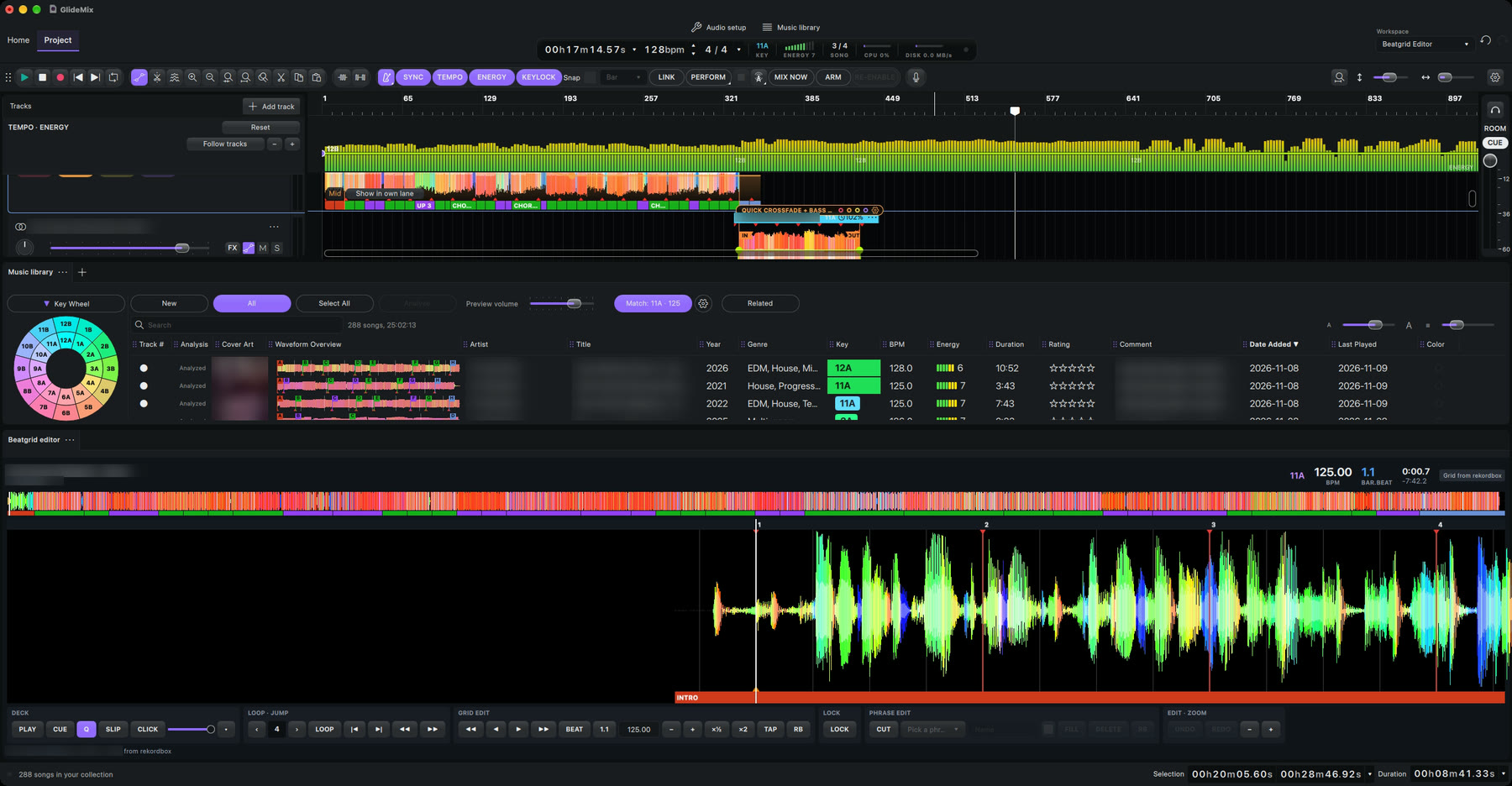
GlideMix has a beat grid editor modelled on the DJ apps, so the steps above feel familiar. And if you already fixed a grid in rekordbox, Lexicon, Engine DJ, Traktor, VirtualDJ or Serato, GlideMix uses that grid, so you don't fix it twice.
- Right-click the song in the library → Edit Beat Grid (or on the timeline: Beat grid → Open in Beatgrid editor).
- Press the metronome button and PLAY (or Space).
- Wrong start: put the playhead on beat 1 and press 1.1. Or BEAT moves the nearest beat to the playhead.
- Whole grid early or late: the arrows move it by 10 ms or 1 ms.
- Drifting: − and + change the BPM by 0.01, ×½ and ×2 halve or double it, TAP takes four taps or more. RB puts the imported grid back.
- Press LOCK. The fix is kept for every project, and every change can be undone.
Where the steps come from
The steps for other apps follow their makers' own manuals and support pages. Menus can move between versions, so check your version if something looks different.