 GlideMix
how-to · updated 17 Nov 2026
How to add samples and loops to a DJ mix
A loop under a long blend, a riser before the drop, a shout over the intro: samples make a mix yours. GlideMix reads your sample packs and keeps loops in time with the mix.
GlideMix
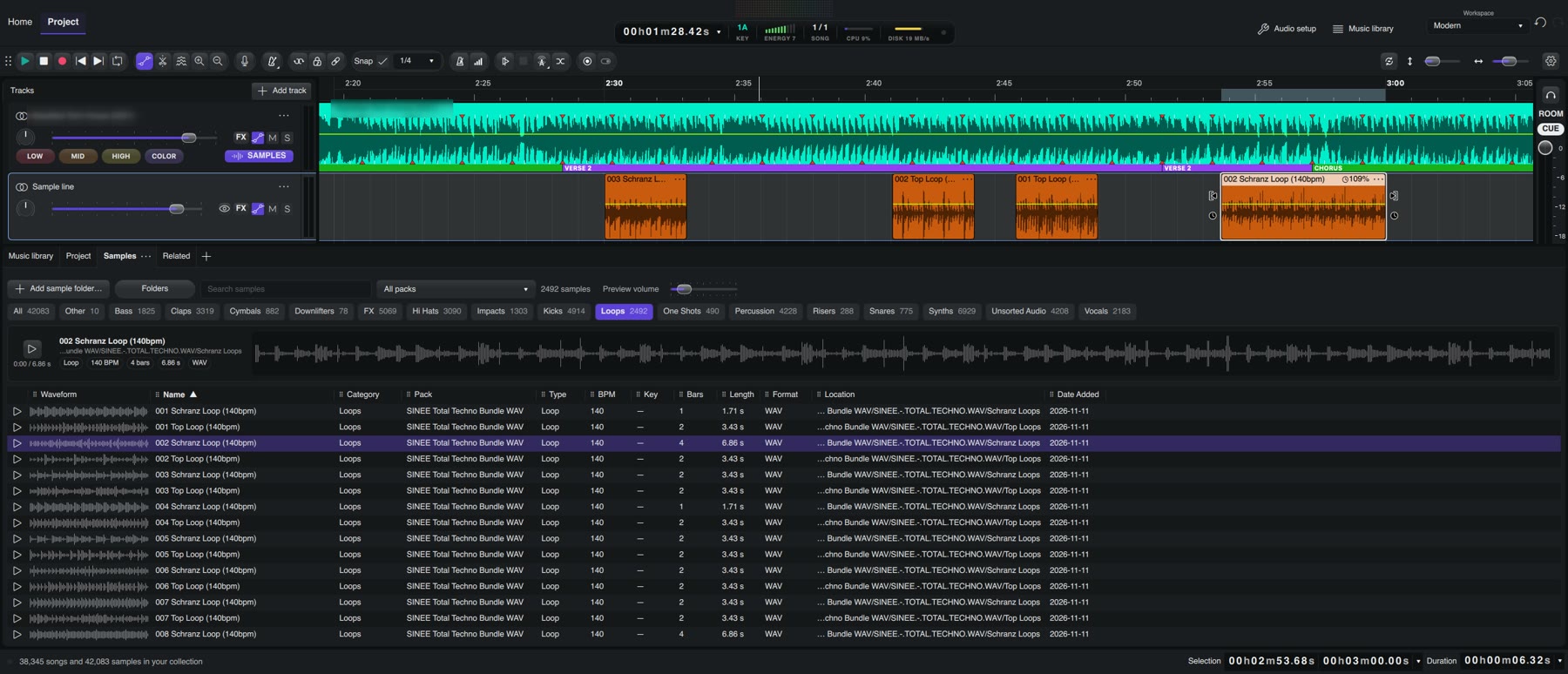
First add your packs, then drop samples on the sample line under a song.
- Open the Samples tab next to Music library and click Add sample folder…. Nothing is moved or renamed: your files are only read.
- The first folder level becomes categories (Kicks, Loops, Risers, FX…), the second level the packs. Tempo, key and bars are read from the file names.
- Click play on a sample: a loop plays at the tempo of your mix, a one-shot at its own speed.
- Press SAMPLES to show the sample lines, then drag a sample onto the line under a song.
- A loop lands on the nearest bar and follows the tempo (a 128 BPM loop in a 124 BPM mix plays at 124). A one-shot lands exactly where you drop it.
- Right-click a sample for its menu: follow the song tempo or not, loop, split, reverse, pitch and speed.
Where the steps come from
The steps for other apps follow their makers' own manuals and support pages. Menus can move between versions, so check your version if something looks different.