 GlideMix
how-to · updated 17 Nov 2026
How to use VST plug-ins in a DJ mix
Most DJ apps only offer their own effects. GlideMix also runs your VST® 3 and Audio Unit plug-ins, on one song or on the whole mix, and tells them the tempo so beat effects stay in time.
GlideMix
Plug-ins are checked once when GlideMix finds them; new ones are found at start-up.
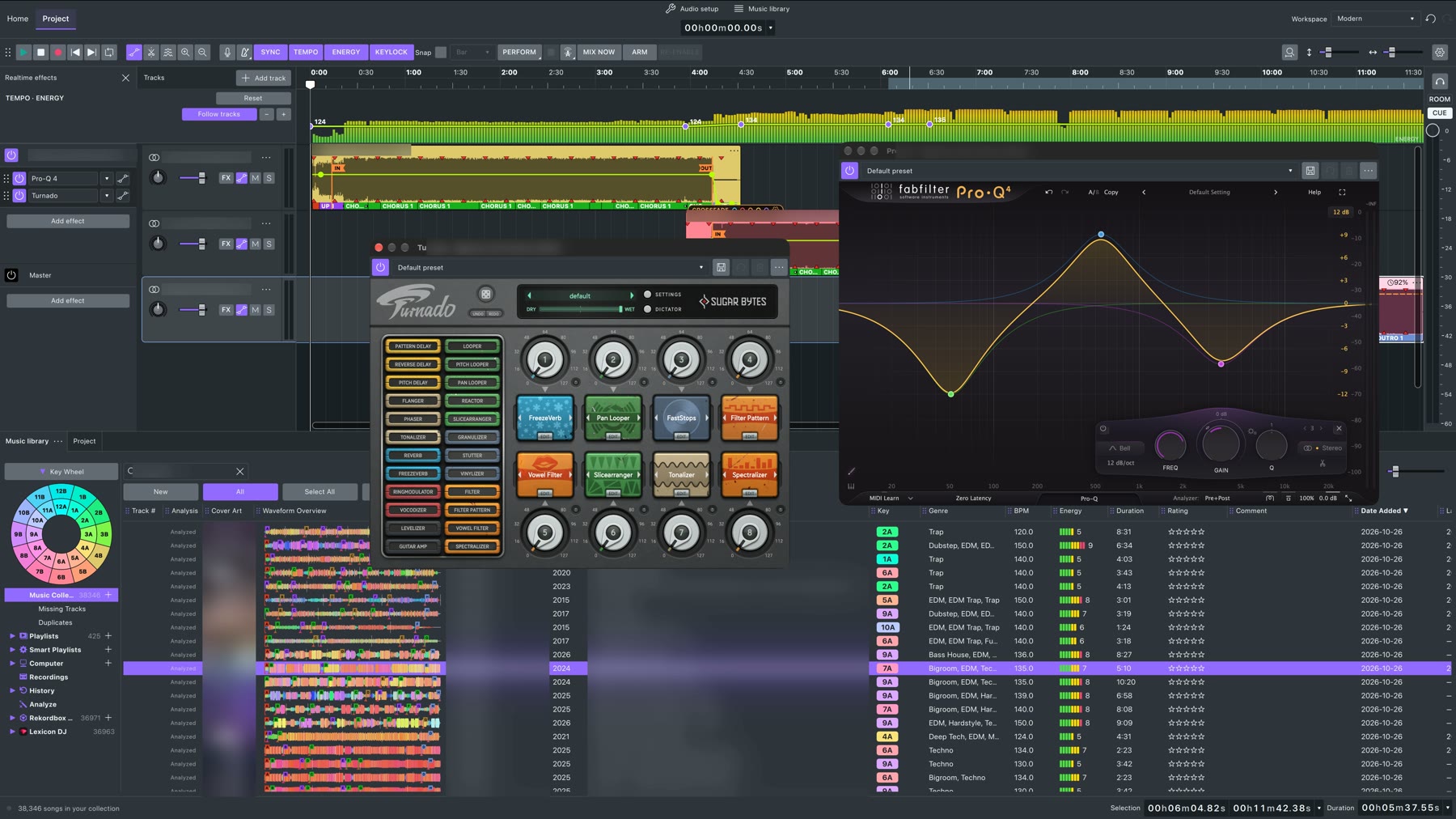
- Click FX on a track (a song or a stem). The effects panel opens at the left.
- Click Add effect and choose one. For the whole mix, use Add effect in the Master part of the panel.
- Open the plug-in's own window, or turn its knobs inside GlideMix. The power button switches it on or off.
- Make it move: press A for Automation mode, touch a control in the plug-in window, and its line appears on the song. Click to add points, drag to move them.
- Manage them in Effect → Plugin manager; extra VST3 folders are in Preferences → Effects.
In time: GlideMix passes the tempo (also while it glides), the beat and the bar to your plug-ins, so loopers, tape stops, beat gates and beat FX play on the beat. About two dozen built-in DJ effects are there too: filter, echo, dub echo, reverb, flanger, phaser, roll, tape stop and more. VST3 on Mac and Windows, Audio Unit on Mac.
Where the steps come from
The steps for other apps follow their makers' own manuals and support pages. Menus can move between versions, so check your version if something looks different.